

Let's get yourdownload unstuck.
Find setup instructions, practical guides and troubleshooting steps for the most common GrabClip questions.
Getting started
Install GrabClip
- Press Download on this site. Or open the latest GitHub release and download
GrabClip_<version>_x64-setup.exeunder Assets. - Run the installer and complete the setup. It installs for your user only, so no admin permission is needed.
- Open GrabClip from the Windows Start menu.
Windows shows a blue "Windows protected your PC" screen? That is explained in Windows says it protected your PC.
Your first download
Your first download takes a few steps. You don't need to install Python or use a command line.
- Open GrabClip, press Add download, choose the source tab and paste the link.
- Press Analyze link or Enter. Check the title, source, duration and estimated size.
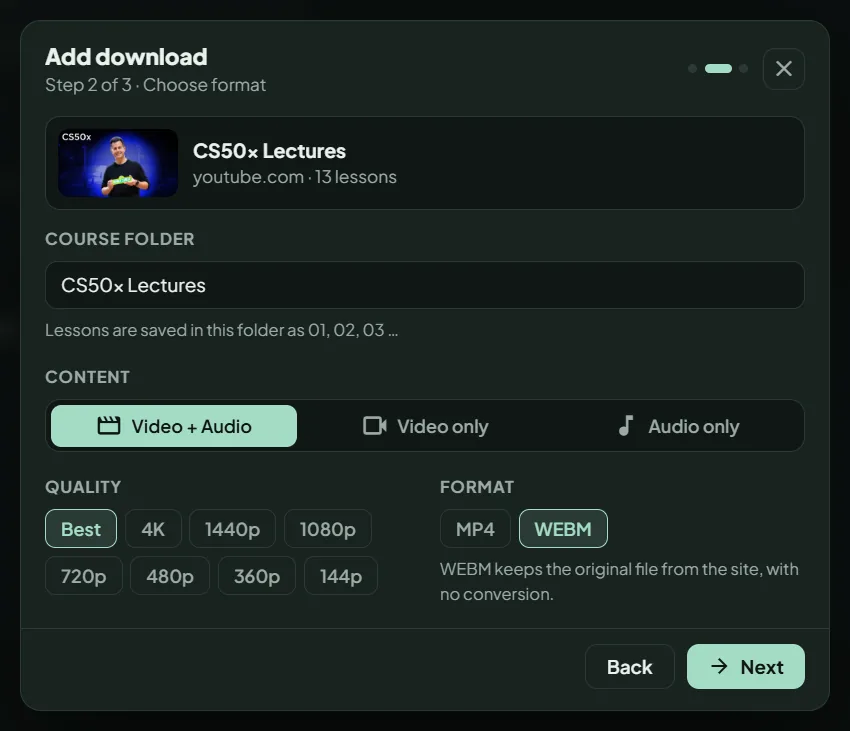
- Choose the content type, quality and format, then press Next.
- Where available, choose subtitles, thumbnail, fast download or a specific time range.
- Press Download. Follow the progress in Downloads. Finished files appear in Library.
Choose a format and quality
Content: Video + Audio, Video only, or Audio only.
Quality: Best (no limit), 4K, 1440p, 1080p, 720p, 480p, 360p or 144p, where the video offers it. For audio you can choose Best, MP3, AAC, OPUS or FLAC.
Format: WEBM keeps the original file from the site with no conversion. MP4 converts it. Step 2 shows an estimated size so you know what to expect.
Some old players cannot play MP4 files that hold VP9 or AV1 video. Try VLC or the built-in player.
Download multiple links
Paste up to 50 links in the link box, one per line. Pressing Ctrl+V outside a text box or dragging a link onto the window also opens Add download with the links filled in.
GrabClip analyzes them one by one, and they share the quality and format you choose. Links that fail are skipped and counted. Each link becomes its own download, without course or time-range options.
Courses
Download a playlist as a course
- Paste the playlist link in Add download. For YouTube playlist links, This is a playlist switches on by itself.
- Press Analyze link. In step 2, type a Course folder name. Lessons are saved as 01, 02, 03 and so on.
- Choose quality and format, then press Download. The lessons appear in Library, grouped under the course folder.
Track watched lessons
In Library, each course folder shows how many lessons it has and how many you have watched, with a small progress bar. A lesson is marked watched when you reach about 90 percent of it, or when you choose Mark as watched in its preview.
Check for new lessons
In Library, press the small refresh button next to the course name. GrabClip checks the playlist again and opens Add download with only the lessons you do not have yet, in the same course folder. Numbering continues from the playlist position.
Courses saved before this feature existed have no playlist link, so they show no refresh button.
Cookies and login
How to import cookies
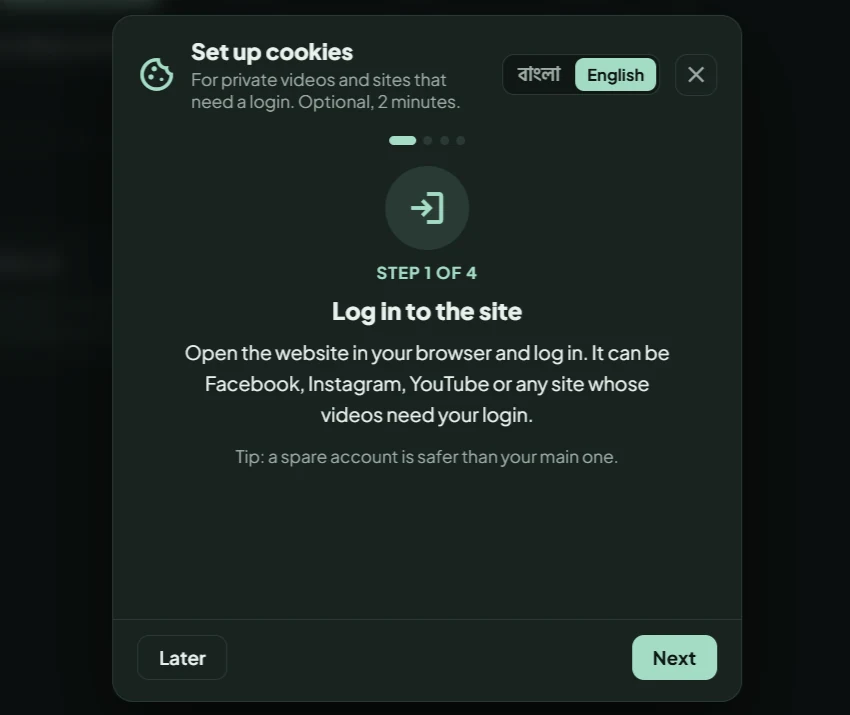
Some videos need you to be signed in to the source website, for example Facebook private groups, Instagram and some YouTube videos. GrabClip can use a cookies.txt file exported from your own browser to reach content your account can see.
- Sign in to the website in your browser.
- Install the free extension Get cookies.txt LOCALLY for Chrome, Edge or Brave, or for Firefox.
- Open the extension on that website and press Export. Export only the site you need.
- In GrabClip, open Settings, Cookies, Import and pick the file.
GrabClip also shows a short guide in Bangla or English. It opens by itself the first time, and later from Settings, Cookies, How to get cookies.txt. A red dot on Settings reminds you while no cookies are imported.
Fix sign-in and bot-check errors
If a download fails with a sign-in or bot-check message, export fresh cookies and import them again with Settings, Cookies, Replace.
If the message says the page needs to be reloaded, the cookies are old or broken. Remove them, or import fresh ones. If a whole site has stopped working, update yt-dlp as well.
Queue and speed
Pause and resume
Press the round button at the start of a row to pause a queued or running download. Press it again to resume. Partial files are kept, so a download continues where it stopped. The queue is saved, so waiting downloads come back after you restart the app.
Use Study mode
On the Downloads page, press Study on the Current speed card. Each press cycles through Off, 500 KB/s, 1 MB/s and 2 MB/s. The limit applies to downloads that start after the change, and when the Night scheduler has its own limit, the smaller one wins.
Schedule night downloads
- Add the downloads you want to the queue.
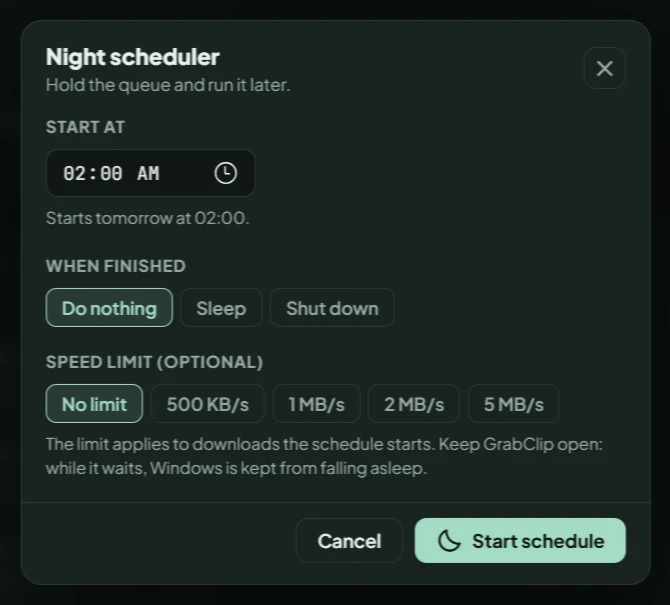
- Press Set up on the Night scheduler card (or Schedule on the Queue page).
- Choose the start time, what happens when the queue finishes (Do nothing, Sleep or Shut down) and an optional speed limit.
- Press Start schedule.
Keep GrabClip open while it waits. Windows is kept from falling asleep until the schedule starts. A shut down gives you a 60 second countdown to cancel.
Fix slow downloads
Turn on Fast download in the last step of Add download. It uses several connections at once for video downloads. Also check that Study mode and the Night scheduler speed limit are off. Actual speed depends on your network and on the source website.
Library and player
Find your files
Finished downloads are in Library. Press the folder icon or Show in folder to open Windows Explorer with the file selected. New files are saved to the folder chosen in Settings, General, which is your Downloads folder by default.
Avoid OneDrive and "Controlled folder access" locations, because Windows can block saving files there.
Use timestamped notes
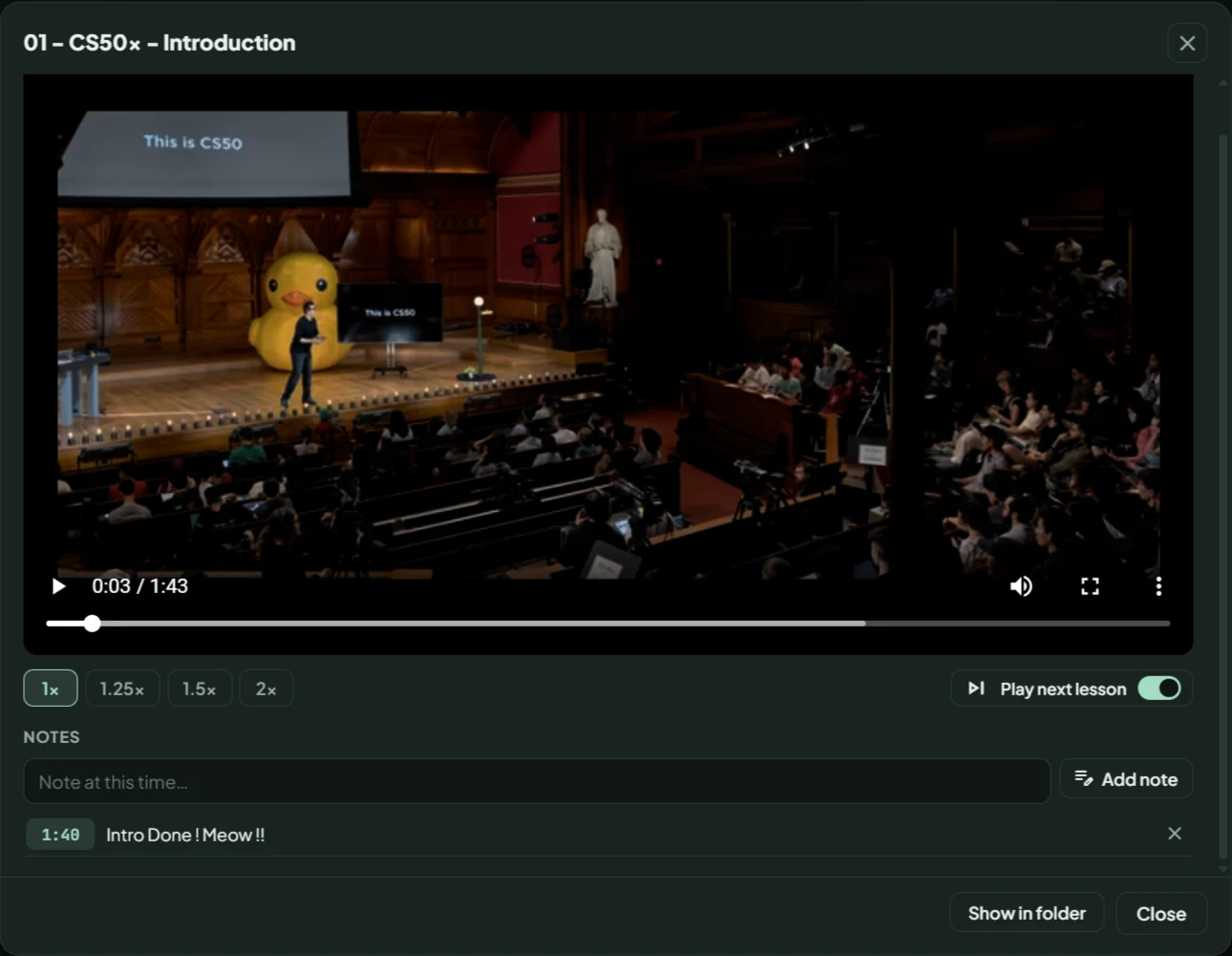
Open a video in the built-in player, type in Note at this time and press Add note. Each note keeps its time. Click the time to jump back to that moment. Notes are saved for each video.
Search inside videos
In Library, press the subtitles button inside the search box to search inside videos. Results are grouped by video, with the time and the matching text. Click one to open the player at that second.
This works only for videos that have subtitles and were downloaded with GrabClip. Older downloads have no searchable text, and GrabClip does not turn speech into text.
Make a smaller copy or extract audio
Open a finished video in Library and choose Make smaller copy (480p) or Extract audio (MP3). The new file is saved next to the original, and the original is never overwritten. It runs one at a time, and not while a download is running.
Phone transfer
Send a video to your phone
- Connect your phone and PC to the same Wi-Fi network.
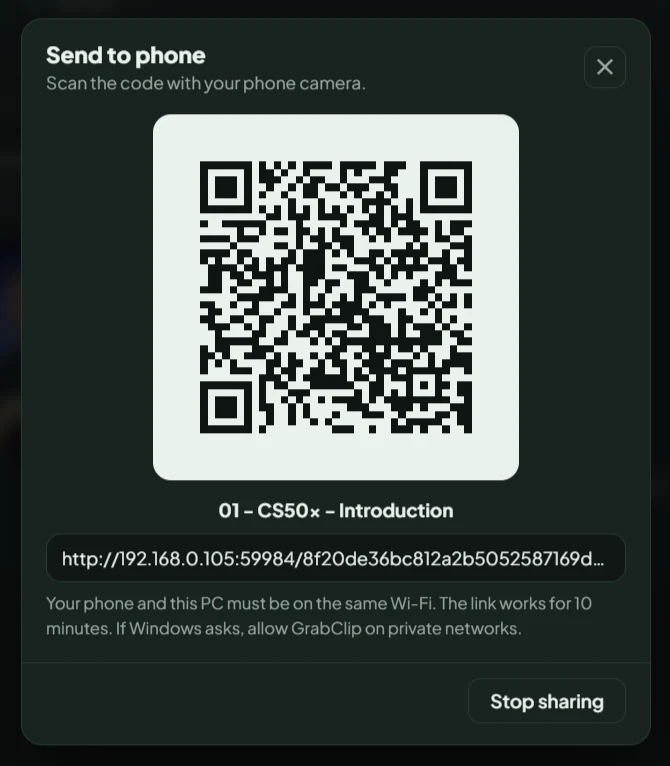
- In Library, open a finished video and press Send to phone.
- Scan the QR code with your phone camera. If Windows asks, allow GrabClip on private networks.
- Press Stop sharing when you are done. The link also stops working after 10 minutes.
The QR link does not open
Make sure the phone and PC are on the same Wi-Fi network, and allow GrabClip in the Windows Firewall prompt on private networks. If more than ten minutes have passed, start sharing again to get a new link.
Updates and errors
Update yt-dlp when a website stops working
Open Settings, Updates, Update yt-dlp. Websites change often, and this fixes many "this site stopped working" problems without a new version of GrabClip. GrabClip also checks by itself and shows a red dot on Settings when a newer version is available.
If the problem stays, report it with the error details. Never attach your cookies file.

Update GrabClip
GrabClip looks for a new version when it starts and shows the release notes with three choices: Skip, Download and install or Download from GitHub. With Download and install, the app downloads the installer, checks its signature, installs it and restarts. Your settings, history and library are kept.
You can also check by hand in Settings, Updates, Check for updates, or run the new installer over the old one. An install waits while a download is running or a night schedule is set.
Windows says it protected your PC
The installer is not signed with a paid Windows certificate yet, so SmartScreen warns about it. Compare its SHA-256 hash with the one on the GitHub release page, then choose More info, Run anyway. The full explanation is on the Download page.
My antivirus flags the installer
Some security programs flag installers that bundle yt-dlp and FFmpeg. Check the SHA-256 hash against the official release first, and look into any detection you cannot explain before you run the file.
A file cannot be saved
Use a normal folder, not one inside OneDrive and not a "Controlled folder access" location. Change it in Settings, General, Change.
A video does not play
The built-in player plays MP4 (H.264), WebM and similar files. For anything else, use Show in folder and open the file in another player. Some MP4 files hold VP9 or AV1 video that old players cannot play. VLC handles them.
Privacy and safety
Where GrabClip stores data
Settings, history, the saved queue, player notes and cookies are stored in %APPDATA%\GrabClip. Downloaded files go to your output folder. Uninstalling GrabClip does not touch your downloaded videos.
No guide matches that search. Try a shorter word, or report a problem.
Something not working as expected?
Before reporting a problem, check the guide above and try the recommended steps. If the problem stays, send a report from GrabClip (Settings, Help, Send a report) or open a GitHub issue.
cookies.txt, login details or other session secrets to a report.What to include
- GrabClip version (Settings, About)
- Windows version
- What you were trying to do
- What happened instead
- The error message or a screenshot that hides private details
- Steps to reproduce it, if you can